Frequently Asked Questions
What is Boogspace?
Boogspace is a free gift exchange registry. It was originally built for our own family's annual Secret Santa gift exchange. The website allowed us to enter "gift ideas" for our Secret Santas to make it easier on everyone. After a few years of having so much fun with this website, we decided to open it up for everyone else to enjoy, so here's Boogspace. Enjoy!
How can I use Boogspace?
Secret Santa gift exchanges are the most popular, but you can use this site for Pollyanna, Kris Kringle, birthdays, graduations, weddings, baby showers, Bar/Bat Mitzvahs, Hanukkah, housewarming parties, Yankee Swap, White Elephant, etc...or whatever else you want to use it for.
How does Boogspace work?
Fill out the registration form,
create a wish list, then tell all of your
friends and family to join your group. Once you and your friends have joined
the same group, then you can enter your gifts, send anonymous emails, post messages in your private message board,
and there's even an option to automatically pick names for your secret santas group.
How much does it cost to join?
Boogspace is absolutely free to join!
Can I demo the site?
Yup, just click on this link to see the
fully functional demo group.
Who do I contact if I have a question?
Please email support@boogspace.com with
any questions or you can use the contact us form.
How can I close my account?
Login to your account and scroll to the bottom of the My Profile page. Click on the "close account" button and your account will be closed within 24-48 hours. You can also use the contact us form.
Will I be SPAM'd?
Absolutely not. We DO NOT and will never sell any of your personal information to any company and that includes your email address.
I forgot my email address!
Please email us at support@boogspace.com with as much account information as possible.
I forgot my password!
Please fill out the forgot password form and
your password will be automatically sent to you via email.
I keep getting an error saying that my password needs to be at least 6 characters, but the group password given to us was only 4 characters, how do I register?
Your login password needs to be at least 6 characters, and your group password needs to be at least 4 characters. These passwords are two different things. Please make note of this.
Can I create a wish list for my son or daughter?
Yes. If you have children who are unable to create their own wish lists, you can open an account for them and create a wish list for them. You will need a new email address, which can be created via one of the free email services like gmail, yahoo, or hotmail.
Also, see the next question for another option.
What if a group member doesn't have an email address?
It's recommended that they create a new email address via one of the free email providers, but if they don't want to do that, then they can share a login with another user and preceed the description field with their name, like so:
FOR MIKE: Nintendo Wii
FOR JANE: Computer
How do I get my group's name and password?
You must email your group administrator for the group name and password. The invite form will also have the group name and password listed.
How come I can't login to my account, I'm pretty sure that I registered?
You most likely used our standalone Secret Santa Generator, which does not require registration. Registration is a separate process. Please register for Boogspace if you want to take advantage of the wish list feature, along with all of the other things that we offer with a registered group.
Where is the group home page?
The group home page is the first page that shows up upon login. You will see pictures of each of the registered group members, along with who's online at the moment, and all of the wish list items posted by each member.
How do I add a gift to my wish list?
Just click on the ADD A GIFT button at the top of the group home page.
How do I delete a gift from my wish list?
Select DELETE from the drop down menu of a wish list item.
How do I view my wish list?
Just click on the MY WISH LIST button at the top of the group home page or you can click on your own picture.
Can I see who bought a gift off of my wish list?
No. Boogspace was designed so that users cannot see the status of their own gifts. However, everyone else in the group can see what gifts have been bought off of your list, to prevent the same gift from being purchased again.
Why does it say "hidden" next to my wish list item?
Wish list items are hidden from the member who posted the item, so that they cannot see whether the item has been purchased or not. This is by design because gift exchanges are supposed to be a secret!
Can other people view my wish list without joining Boogspace?
No. Users must have an account at Boogspace in order to view your wish list.
How come I can't view the wish lists of other group members?
Once other group members register for your group, they will show up on the Group Home Page and you will be able to see their wish lists. If you are the only user in the group, then the other group members have not joined your group yet.
Can I hide my wish list from certain groups?
Yes. Just click on the orange icon | MANAGE WISH LISTS, then select the button for either yes or no. This is great for birthday or graduation groups where there is only one person receiving the gifts.
What if I need to ask a person for more information (like shirt size, color, or brand?) regarding their gift?
Please use the Send Anonymous Email link on the group home page. This will allow you to write an email to the person without them knowing who you are.
What is the Gifts Purchased link?
If you're like me and can't remember which gifts you've purchased for your group members, then you can use this link to store all of the gifts that you've purchased. In order to "remember" a gift, just select the "remember" drop down choice for any gift in a user's wish list and the gift will automatically appear on the Gifts Purchased page.
Can I join multiple groups?
Yes. You can join as many groups as you want. Click on orange icon | MY GROUPS, or select the Join/Create a New Group option from the Please select a group drop down menu.
How do I post a message in the Message Board?
There should be a New Message link at the top right of the Private Group Message Board.
Can I send an email to my Secret Santa?
Yes. Just go to the Send Anonymous Email page, then select "[REPLY TO MY SECRET SANTA]" from the drop down menu. Only your secret santa(s) will be emailed. They will know who you are, but you will not know who they are.
How do I upload my own picture?
After you've logged in, click on the orange icon | MY PROFILE.
How do I join another group?
After you've logged in, click on the orange icon | MY GROUPS and then enter the group name
where it says "Join a new group". Click on "submit" and then you should
be able to select your new group in the group drop down menu.
How do I change my email address, password, or other profile information?
After you've logged in, click on the orange icon | MY PROFILE. You must enter your current password in order to make any changes.
How do I remove myself from a group?
Click on the orange icon | MY GROUPS, then click on the Remove Me button. If the Remove Me button is grayed out, then it means that you are the only group administrator of the group. In order to remove yourself, you must either assign another group member as an administrator or remove each group member from the group via the ADMINISTRATOR TOOLS section, then you will be able to remove yourself from the group.
How do I remove another user from my group?
Click on the orange icon | ADMINISTRATOR TOOLS, then check the Remove User box next to the user that you want to remove from your group. Click on the Update button at the bottom and the user should be removed. Remember, only a group administrator can remove another user from a group.
How do I invite my friends to join?
Click on INVITE FRIENDS. Enter their email addresses in the appropriate boxes and an email will be sent to them with your group name and password.
What does "Hide Results" mean?
When this option is set to "yes", the results of the Secret Santa Name Picker are hidden from the administrator.
What is the "Admin Message" field?
This field changes the admin message displayed on the group home page.
What is the "Duplicates" field?
When this option is set to "yes", no participant in the Secret Santa group will receive another participant more than once. This option only applies to group where there is more than 1 pick (or "present") for each participant.
How do I randomly pick names for all of the people in the gift exchange?
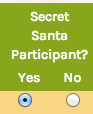
After login, click on the orange icon | SECRET SANTA GENERATOR. Only the group administrator(s) will have access to this function. Select your group from the drop down menu, then, select all of the group members
who are participating in the gift exchange (their names should say "yes" next
to the "Secret Santa Participant?" column). Once you've enabled all of the people
participating in the gift exchange, then click on the Pick Names button and the random selection process will begin. You will be able to add non-registered group members in the second step of the generator process.
Can my group have more than one Secret Santa per member?
Yes, just click on the edit button and edit the presents field. This field will determine how many Secret Santas are picked for each group member.
What does the "Enabled?" field do?
You can disable a group member's account within your group. The group member will no longer be able to access any of the group's functions.
What happens when I remove a user?
The group member will be removed from the group, but will still have access to re-join the group, unless you change the group password.
How can I delete a group?
Only the group administrator will be able to delete and destroy a group. As the administrator, you must go the ADMINISTRATOR TOOLS section and remove each user from the group, then go to the MY GROUPS section and click "remove me". This will remove and destroy the group.
Can I create multiple wish lists?
Yes, click on the orange icon | MANAGE WISH LISTS. Create a new wish list, then link your new wish list to a group.
Why are all of my wish list items displayed across all groups that I belong to?
The Default wish list is a universal wish list displayed across all groups that you belong to, meaning each user in each group will be able to view your entire Default wish list. If you want to separate your wish lists, then you will need to create a new one and assign that wish list to your group.
How many wish lists can I create?
Each user is able to create up to 15 wish lists. If you need more, then please email us.
Will all of my gifts be deleted if I delete a wish list?
Yes. Please do not delete your wish list if you don't want all of your gifts deleted. This operation cannot be undone.
Can I pick names for my Secret Santa group without registering for Boogspace?
Yes, please use the standalone Secret Santa Generator.
What is the difference between the standalone Secret Santa Generator versus the one with the registered group?
The standalone is located here and the registered-group one is located under the orange icon | SECRET SANTA GENERATOR page upon login. They are essentially the same thing, but the standalone doesn't require registration.
How does the Secret Santa Generator work?
Fill out your name, email address, and enter a list of participants in the Secret Santa gift exchange. Determine the number of presents for each participant, and if duplicates Secret Santas for the same participant are okay, then select the appropriate boxes for each. Click the "Submit" button.
Then, if you want the names to be sent to each of your participants via email, enter their email addresses, a private note, and click the "send email" button.
What is the "number of presents" option?
If each participant is buying a total of 2 gifts for their Secret Santas, then select "2" in the drop down menu for "number of presents".
What is the "no duplicate secret santas" option?
This option prevents the same patricipant from having the same Secret Santa two or more times, depending on the "number of presents" field. So, if each participant is buying 2 presents for others, and the "no duplicate secret santas" field is checked, then Particpant #1 will not be buying presents for Participant #2 twice.
What if I don't want one person picking another person's name?
When entering your list of names, please use the following format:
Name,{exclude-name, exclude-name, etc.}
"Name" is the name of a participant and "exclude-name" is the exact name of another participant. So, your list would look something like this:
John,{Amy}
Amy,{John}
Greg,{Melissa}
Melissa,{Greg}
Jack
Pete
Please make sure you include the comma after the name and note that the excluded names are in braces "{ }"and not brackets "[ ]". If you do not use the above format, you will get an error.
How come I can't login to my group?
When you use our standalone secret santa generator, your group has not actually been created yet, so you will not see any of your group members, until they have all registered for Boogspace.
Can I modify my secret santa group after I've sent out all of the emails?
If you entered an email address incorrectly, then please use our FIX EMAILS & RESEND PICKS tool. Nothing else can be changed, except the participant email addresses.
How can I make my Secret Santa Group completely secret?
The group administrator is the only person who gets the Master List, so you can have someone do the picks for you or you can use a dummy email address
How can I get the Master List resent to me?
Please use this tool: Resend Master List
How can I get my Master List Password?
Please have the group administrator send us an email at support@boogspace.com with their group name and group password.
Someone in my group did not receive their pick, how can I resend it to them?
Please use this tool: Resend Secret Santa Pick or the group administrator can use the Generate Recovery Links tool to send a url to the participant.
How do I view my secret santas?
Secret Santa picks are sent via email. If you did not receive your pick for some reason, then please have your group administrator generate recovery links, or you can have the pick resent to you from this link.
How do stop receiving text messages from Boogspace?
Reply 'STOP' to our text message and you will not receive a text again. Reply 'START' to start receiving messages from us.
What is my group password?
If you used our standalone secret santa generator, then we automatically created a group password for you. The password is 4 or 5 digits and included in the master list email and each participant pick email. If you still don't remember this password, then please contact support@boogspace.com and we'll help you out with it.
Can I send an SMS text message to the recipient with their pick?
As of November 7, 2016, we are no longer offering text messaging capabilities as the carriers were blocking a lot of our messages.
As of October 28, 2014, we now support sms text messaging to cell phone numbers. No need to enter the fully qualified SMS email address anymore. For phone numbers located in the United States, please enter the 10-digit cell phone number (e.g. 703555555). For phone numbers located outside of the United States, please enter the exit code 011 + <your country code> + <phone number> (e.g. UK = 0114475555555)
For fully qualified sms text message email addresses, just enter their mobile phone email address (e.g. 5555555555@txt.att.net) in the appropriate field, then a text message will be sent to the member. The text message will be less than 160 characters just listing who the member is supposed to buy for. If you don't know the sms email address, you can find them here: https://www.emailtextmessages.com/
Can I use last year's Secret Santa list?
You can import an old list into our Secret Santa Generator via this link. This will allow you to use last year's list or any previous list without having to reenter all of the names and email addresses again.
I've registered for Boogspace. Now, how do I pick names?
Only administrators of the group will be able to pick names for their Secret Santa group. Please go to the ADMINISTRATOR TOOLS section above for directions.
Can I add non-registered group members to the name drawing?
Yes, in the second step of the Secret Santa Generator process, you will be allowed up add up to 100 non-registered group members.
How do I exclude one member from picking another member?
In the second step of the Secret Santa Generator process, you will be allowed to enter a list of DO NOT PICK names.
Can I import old DO NOT PICK lists from previous years?
Yes, you can import up to the past 5 years, so that group members will not pick other group members whom they've had as Secret Santas in the past.
Where can I find my secret santa pick?
Click on the orange icon | MY SECRET SANTA then select your group.